


01
Describe the message
Name the topic, audience, key points, order, and visual form you need: a timeline, comparison, process, checklist, or short data summary.
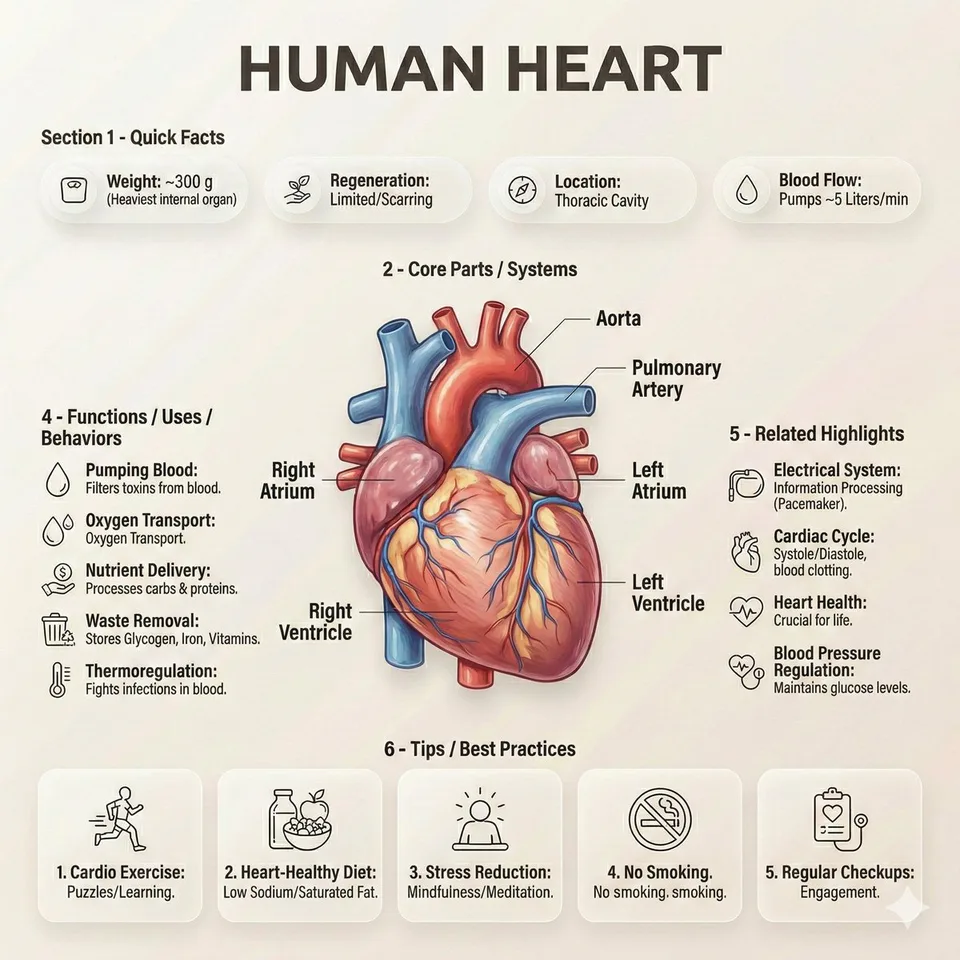
AI infographic generator
Shape notes, processes, comparisons, and visual references into a structured infographic concept. Start from a real CinePixel example, inspect the prompt, and refine it in the GPT Image 2 workspace.
Model-owned workspace
GPT Image 2
Inspectable source prompt
#2404
Supported landscape frames
16:9, 3:2, 1:1
Concept media license: CC0 1.0
The verified Prompt for Turn rough ideas into clear infographic concepts is owned by GPT Image 2. These alternatives cover the required workflows and output shapes; compare typed facts before choosing.
Jump into a focused image generator for a specific creative task, then continue in its canonical CinePixel workspace.
How it works
01
Name the topic, audience, key points, order, and visual form you need: a timeline, comparison, process, checklist, or short data summary.
02
Switch to image editing when you have a draft, screenshot, chart, or old infographic. Upload it and explain what to preserve, simplify, or reorganize.
03
Check the prompt and settings first. Refine section names and hierarchy, then explicitly choose Generate when the concept is ready for review.
Practical directions
Keep the structure clear while changing the topic, audience, hierarchy, and frame for each communication goal.
Turn an outline, lesson summary, checklist, or campaign message into a visual order that is easier to evaluate before final design.
Use a screenshot, chart, slide, or old infographic as a reference, then guide the workspace toward a cleaner grouping or stronger emphasis.
Explore timelines, steps, pros and cons, feature comparisons, and educational summaries without hiding the source information in decorative effects.
Before you generate
Yes. Prompt 2404 has its own canonical CinePixel detail page, so you can review the real prompt and output before opening the workspace.
Yes. GPT Image 2 supports the image-editor mode. Upload a draft, screenshot, chart, or existing infographic and describe what should change before generating.
The handoff opens the existing GPT Image 2 workspace in either text-to-image or image-editor mode. The page does not create a separate generator or hide the selected model.
No. Treat the result as a concept-stage visual. Verify labels, numbers, names, dates, and other exact copy before publishing, teaching, or making a business decision.
Open GPT Image 2 with Prompt 2404 ready, refine the information hierarchy and settings, and generate only when you choose to proceed.
Open infographic workspace