
Create from text
Create finished images, concept art, product shots, and visual drafts from text.
GPT Image 2.5
Create from text
Create finished images, concept art, product shots, and visual drafts from text.
Create from text
Create finished images, concept art, product shots, and visual drafts from text.
Create with GPT Image 2.5
A focused image workspace built around the model
Create with GPT Image 2.5 using focused controls, supported inputs, and a persistent result canvas.
- Use controls matched to the selected model
- Keep prompt and reference inputs in one workspace
- Review generated results without losing context
- Continue from history and saved creations
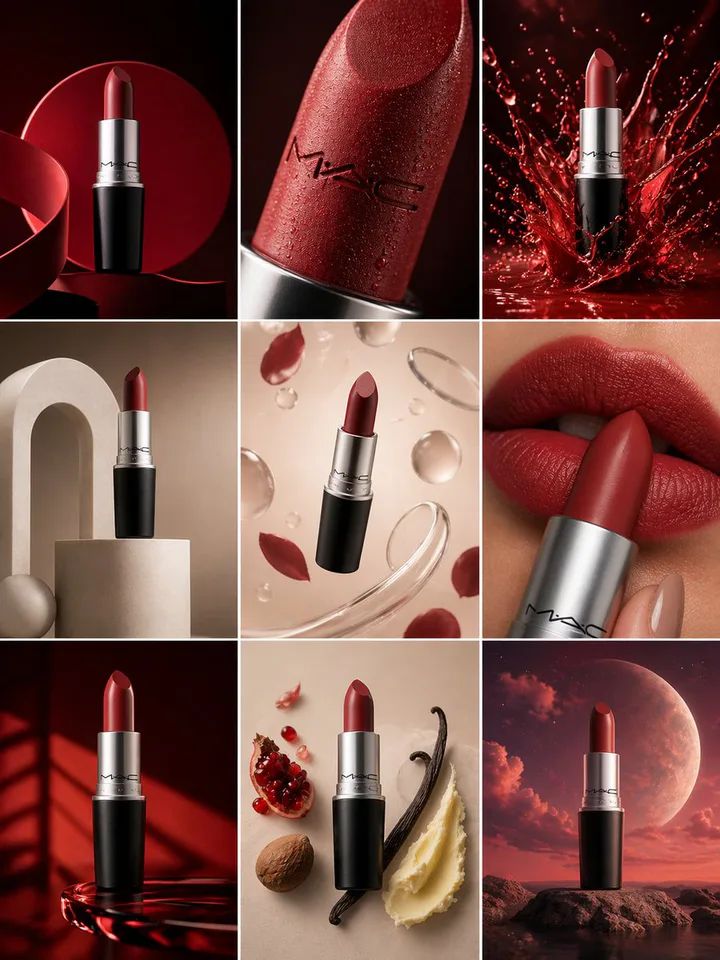
Compare matched model alternatives
These catalog-backed models share the strongest verified capabilities with GPT Image 2.5. Review the evidence before choosing a workspace.
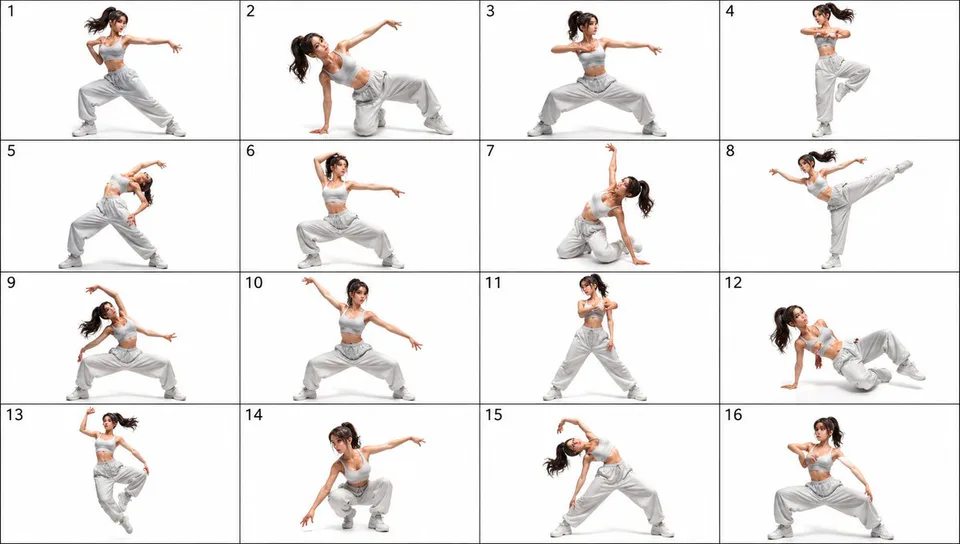
Explore image generators by task
Jump into a focused image generator for a specific creative task, then continue in its canonical CinePixel workspace.
Explore GPT Image 2.5 prompt directions
Load a starting point into the generator and adapt it to your visual brief.
Create with GPT Image 2.5
Use model-aware controls, references, and persistent results in one focused workspace.
- Text to Image
- Credits per generation
- 10-24 creditsPricing source updated
- Supported aspect ratios
- 16:9 · 9:16 · 1:1 · 3:2 · 2:3
- Output format
- PNG
- Resolution
- 1K / 2K / 4K (varies by settings)
- Image to Image
- Credits per generation
- 10-24 creditsPricing source updated
- Supported aspect ratios
- 16:9 · 9:16 · 1:1 · 3:2 · 2:3
- Output format
- PNG
- Reference image capacity
- Up to 16 reference images
- Resolution
- 1K / 2K / 4K (varies by settings)
Exact options are revalidated in the workspace for the selected workflow and aspect ratio.
- Prompt-led creation with model-aware controls
- Reference inputs for supported editing workflows
- Flexible output framing and resolution settings
How to use GPT Image 2.5
Use the live workbench in four deliberate steps, then review the result before you decide what to create next.
Choose a model and workflow
Start from this canonical model route and select the workflow that matches your brief, such as Text to Image or Image to Image when available.
Describe the visual direction
Write the subject, composition, lighting, materials, and must-keep constraints in the prompt, putting the most important details first.
Add references and adjust settings
Add reference images when the selected workflow supports them, then adjust only the ratio, resolution, format, and other controls shown for that workflow.
Review before creating
Inspect the prompt, references, model, and output settings, then choose Generate when the brief is ready.
GPT Image 2.5 questions
Does choosing an example start generation?
No. It only fills the prompt so you can review the direction before creating.
Can I keep working from the same route?
Yes. Prompt examples preserve the current model workspace and its settings.
Do I need a separate subscription to use GPT Image 2.5?
No. CinePixel runs GPT Image 2.5 with pay-as-you-go credits, so you do not need a separate ChatGPT, Gemini, or other AI plan. Credits are only used when you generate an image.
Ready to shape the next image?
Return to the live workbench to adjust your prompt, inputs, and output settings before you create.
Compare image models
Compare CinePixel AI image models by workflow, provider, output controls, and current credit range, then open a verified model workspace to create.