
AI photo tool
Image text editor: Edit Photo Text: Replace the Words in an Image Online
Have a finished JPG, PNG or WebP? Enter the old headline and its replacement. Check the background and the rest of the flyer before you use the draft.
Upload a photo
No NSFW, harmful content, or deceptive identity edits. Follow our Acceptable Use Policy
Your results
Your edited photos will appear here. They are also saved to your history.
Need custom instructions? Open the Image Editor with this tool's brief ready. Open in Image Editor
Change SUMMER SALE and keep 20%
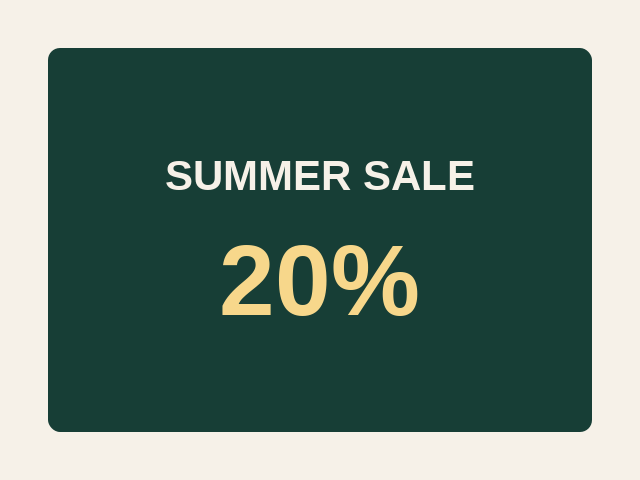
- Requested change
- Type SUMMER SALE into Exact text in the image and AUTUMN SALE into Replacement text. The 20% line stays as it is.
- What to check
- Read AUTUMN SALE letter by letter. Check the left and right margins, then look for a patch of lighter green where the old letters were. Compare the 20% line against the original. Reject a draft if anything else changed.
What Image text editor helps with
- Copy the headline exactly, including capitals
- Keep the replacement close to the original length
- Check nearby numbers and the background
Results are AI-generated. Keep your original and compare details before you share or print.
What does Image text editor do?
Edit text in an image when the flyer is already exported and you need to update one line. The tool asks the model to replace the exact words and leave the rest of the design alone. Check the draft against the original before publishing.
How to use Image text editor
- 01
Upload your photo
Add the photo you want to edit. Use the original file or a good scan for the best result.
- 02
Run Image text editor
Have a finished JPG, PNG or WebP? Enter the old headline and its replacement. Check the background and the rest of the flyer before you use the draft.
- 03
Check the result against your photo
Generate, compare the result with your original, and download it. Every result is also saved to your history.
- 04
Download the version you checked
Download the result you are happy with. Every result is also saved in your history.
Image text editor features
Enter the old and new headlines
Upload a sharp JPG, PNG or WebP of the flyer. Copy the original into Exact text in the image and type the new line in Replacement text. Both fields accept up to 200 characters. Generate one draft to review first.
Read the new line beside the original
Check the spelling at full size. Compare alignment, spacing and the nearby dates, prices or discount. Open the draft at the size it will be seen to make sure the headline still fits.
Look behind the old letters
Look for pale patches, uneven texture or pieces of the original letters around the new headline. These are easiest to spot on a gradient or patterned background.
What you can do with Image text editor
Update a seasonal sale
Change the season in the headline and leave the offer below it alone.
Correct a flyer date
Enter the full date as it appears in the artwork. Check the time and venue separately.
Swap a call to action
Use a replacement that fits the same line. Check the spacing inside the button or badge.
Fix one misspelled word
Include adjacent words in the text fields if the same word appears elsewhere on the flyer.
Tips for better Image text editor results
- Copy the visible text exactly, including capitals and punctuation, so the task targets the right words.
- Keep the replacement close to the original length. Much longer text has less room to fit the same design.
- Zoom in on the result and read it letter by letter, then check nearby numbers and logos.
Image text editor FAQ
- Can I choose one occurrence of repeated text?
- This task asks the model to replace exact occurrences. It does not include a selection brush. If the same text appears in several places, review every occurrence.
- How do I edit a flyer with no design file?
- Use the exported image. Enter the exact old headline and its replacement, generate a draft, and compare the lettering and background with the original.
- Can it match the original font?
- The model is asked to match the surrounding typography, but it does not identify or install a font. Compare letter shapes and spacing in the result.
- Should I use this for official documents?
- No. Do not use it to alter IDs, certificates, receipts, or anything else in a way that misleads people. Follow the Acceptable Use Policy.