
AI photo tool
Product background changer: Make Background White: Put a Product Photo on Pure White
Upload one product photo and choose White studio. Compare the draft with your original, then check how white the background is before putting it on a listing.
Upload a photo
No NSFW, harmful content, or deceptive identity edits. Follow our Acceptable Use Policy
Your results
Your edited photos will appear here. They are also saved to your history.
Need custom instructions? Open the Image Editor with this tool's brief ready. Open in Image Editor
Pure white is a pixel value
Here is Eusebius’s transparent pen on a solid white preview. The pale point on the right is still visible. Use that as your check on a White studio draft: look at the pale edge first, then sample a few background points in the downloaded file. A shadow next to the pen is different from gray in the corners.
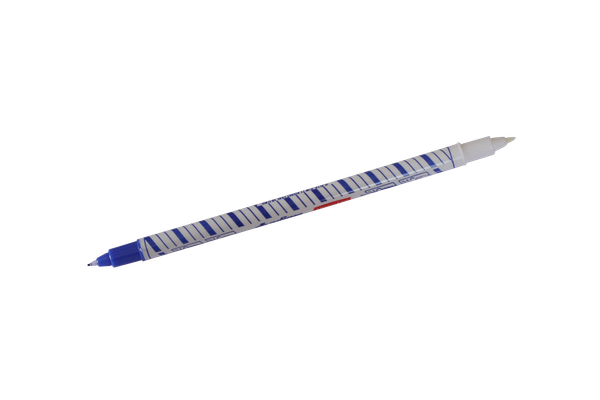
Image credit: Eusebius. Resized for web.Original sourceCC BY 3.0

What Product background changer helps with
- Start with the whole product in frame
- Keep pale edges, labels and small parts visible
- Check the downloaded background with a color picker
Results are AI-generated. Keep your original and compare details before you share or print.
What does Product background changer do?
To make a background white, use White studio for a listing photo when the desk, wall or packaging behind the item is in the way. Start with the sharpest photo you have, with the whole product visible. After the edit, put the draft next to that source and check what stayed the same.
How to use Product background changer
- 01
Upload your photo
Add the photo you want to edit. Use the original file or a good scan for the best result.
- 02
Run Product background changer
Upload one product photo and choose White studio. Compare the draft with your original, then check how white the background is before putting it on a listing.
- 03
Check the result against your photo
Generate, compare the result with your original, and download it. Every result is also saved to your history.
- 04
Download the version you checked
Download the result you are happy with. Every result is also saved in your history.
Product background changer features
Choose White studio under Background scene
Upload one product photo, leave Image size on Auto if you want to follow the source shape, and choose White studio. Start with one image so you can review the first result before spending credits on more.
Look at the edge before the background
Zoom in on pale parts and gaps such as a cap, a handle or the space inside a buckle. If a small part disappears into the white or a letter on the label changes, use a different draft.
Sample the downloaded corners
White studio can leave a soft gray cast or a shadow. If your listing requires pure white, use a color picker on several background areas away from the product. Pure white reads RGB 255, 255, 255.
What you can do with Product background changer
Store and marketplace listings
Draft a cleaner background for a product shot taken on a desk or in a stockroom.
Consistent catalog sets
Try the same scene across several products so a collection reads as one set.
Ad and social concepts
Test how a product sits on stone or a tabletop before you plan a real shoot.
Fresh looks for older photos
Give an existing product photo a new setting when a reshoot is not worth the time.
Tips for better Product background changer results
- Leave a little room around the product in the source so the whole edge is available for the edit.
- Compare the label at the same zoom in both files. If a size, flavor or model number changed, use the original.
- For a flat white background, place a clean transparent cutout on a solid #FFFFFF layer, then check the edge and the exported file.
Product background changer FAQ
- Will my product stay exactly the same?
- The model may change labels, shape or color. Check every product detail against your original; reject results that misrepresent the item.
- How do I change a product photo background to white?
- Upload the photo, select White studio under Background scene, and generate one draft. Check the item against the source and sample the downloaded background before using it.
- Is White studio always pure white?
- The draft can include a shadow or off-white areas. If you need exact #FFFFFF, put a checked transparent PNG over a solid white layer and sample the export.
- Does this tool add props or accessories?
- The edit asks the model to leave accessories and the product itself alone. Compare the draft with your original and reject any added or missing piece.
Example task and review
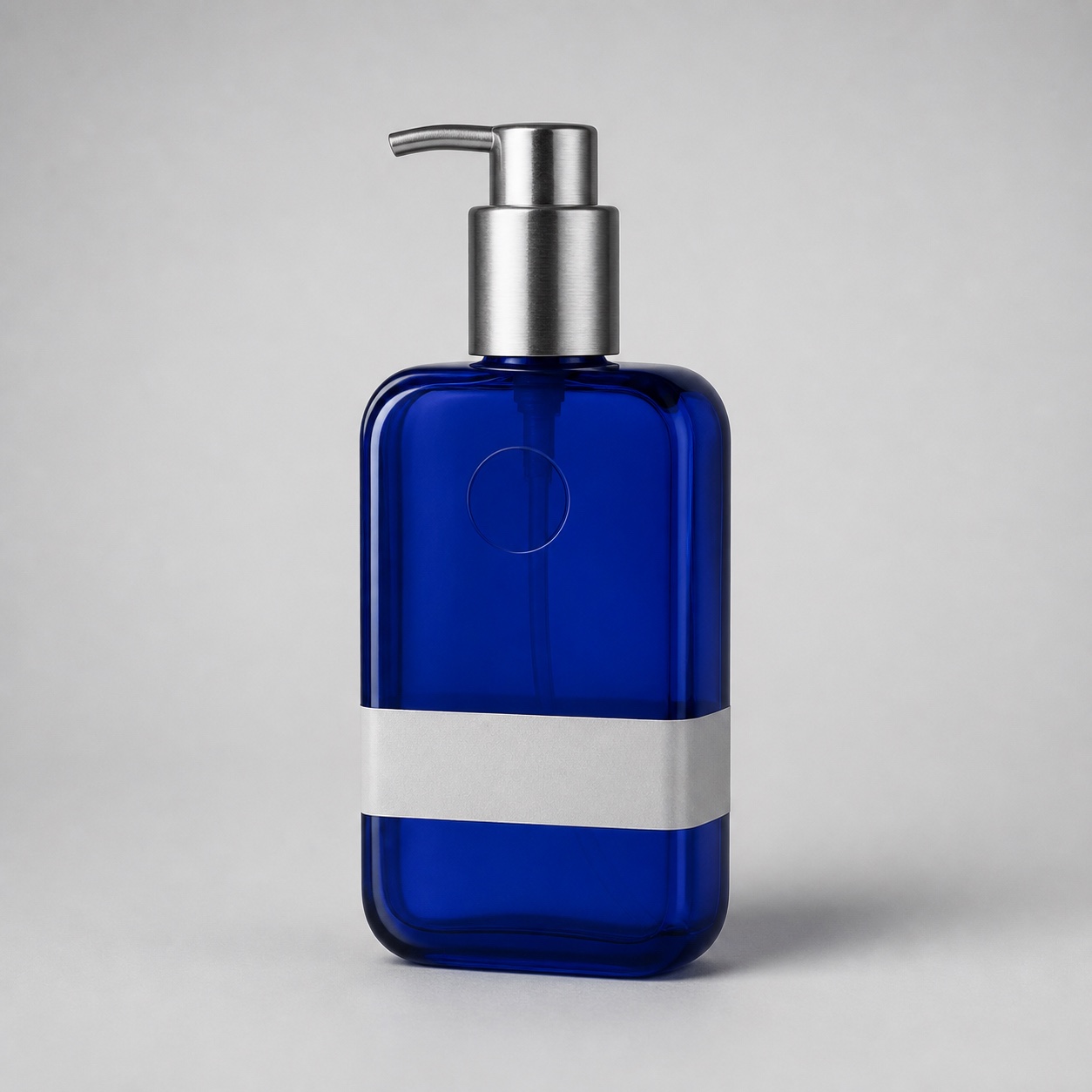
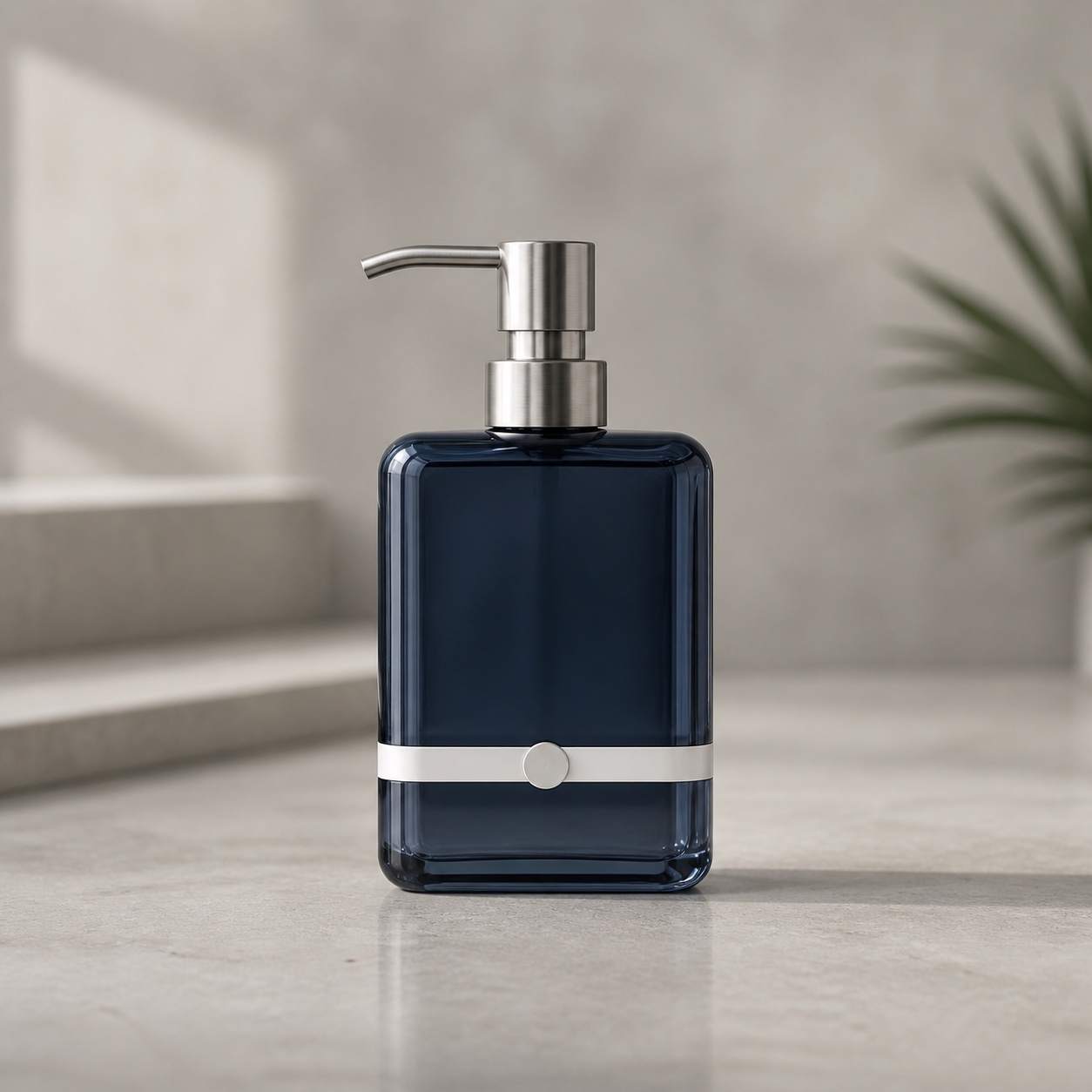
- Requested change
- Place the bottle on warm stone while keeping its original product details.
- What to check
- The existing reviewed concept changes the blue, pump and badge. It is a useful rejection example, not an approved product photo.