
AI photo tool
Generative Fill: Add, replace, remove, repair or extend
Describe the target area and choose one operation. This workflow uses text-directed image editing; it does not provide a mask brush.
Upload a photo
No NSFW, harmful content, or deceptive identity edits. Follow our Acceptable Use Policy
Your results
Your edited photos will appear here. They are also saved to your history.
Need custom instructions? Open the Image Editor with this tool's brief ready. Open in Image Editor
What Generative Fill helps with
- Describe the exact area and one requested change.
- List the faces, labels, geometry and details that should remain.
- Compare the full result with the source, including areas outside the edit.
Results are AI-generated. Keep your original and compare details before you share or print.
What does Generative Fill do?
Generative fill changes one described area of an image with newly generated content. Choose one operation: add, replace, remove, repair, or extend. Then describe the change, the target area, and what must be retained. This workflow uses text-directed image editing rather than a mask brush. The model is asked to blend edges, texture, light, and perspective, but filled or extended areas are new interpretations, not recovered pixels.
How to use Generative Fill
- 01
Upload your photo
Add the photo you want to edit. Use the original file or a good scan for the best result.
- 02
Run Generative Fill
Describe the target area and choose one operation. This workflow uses text-directed image editing; it does not provide a mask brush.
- 03
Check the result against your photo
Generate, compare the result with your original, and download it. Every result is also saved to your history.
- 04
Download the version you checked
Download the result you are happy with. Every result is also saved in your history.
Generative Fill features
Five fill operations
Choose add, replace, remove, repair, or extend for each run, so the task states what kind of edit you want.
Blending with the source
The model is asked to match edges, texture, light, shadows, and perspective with the surrounding image.
Text-directed selection
You describe the target area in words. No brush or pixel mask is used, so check the whole image after generating.
What you can do with Generative Fill
Add an object
Place a new element in a described spot, such as a plant on an empty shelf.
AI replace: remove or swap a detail
Take out a distraction or swap one item for another in the scene.
Repair a damaged area
Rebuild a torn or marked part of an image as a plausible new interpretation.
Extend an image
Generate more of the scene along one side when a crop feels too tight.
Tips for better Generative Fill results
- Pick the operation first, then write the change so it matches. A remove task should not also ask for new objects.
- Describe nearby texture and light, such as the wooden floor by the window, to help the fill match the scene.
- Inspect the seam where old and new content meet, then check the rest of the image for changes you did not request.
Generative Fill FAQ
- How is the area selected?
- You describe the area in words. No pixel mask is supplied. AI may change other details, so inspect the whole result. Generated or reconstructed content is not recovered original information.
- How do I use AI generative fill?
- Upload an image, choose an operation, describe the change and the target area, and list what must be retained. Generate and compare the draft with your source.
- Can generative fill extend an image?
- Yes. Choose Extend and describe which side to continue. The extended content is invented, so it does not show what was really outside the frame.
- Does it restore the original content?
- No. Reconstructed or extended areas are new visual interpretations, not recovered pixels. Do not treat them as a record of what was there.
Example task and review
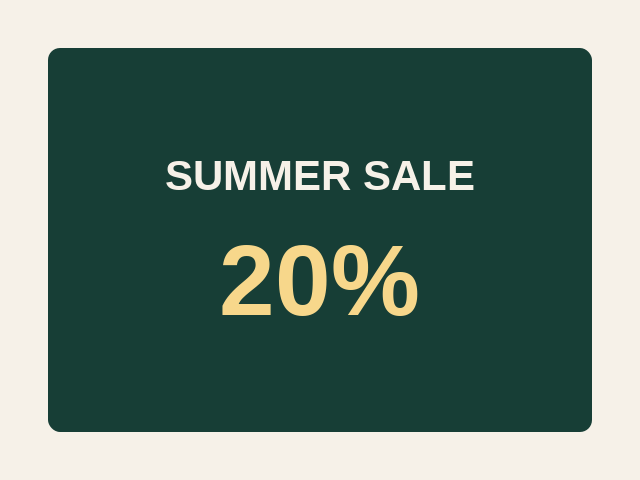
- Requested change
- Change the plain background to a warm beige surface. Target only the background; retain SUMMER SALE, 20%, typography and card proportions.
- What to check
- This is an example brief, not a verified AI result. Compare the text, numbers, edges and entire layout before using an output.