
A Publish-Ready AI Image Workflow
A product-photo review example shows how to set acceptance criteria, spot identity drift, and decide whether an AI image is ready to publish.
A generated image is a concept until it passes the requirements of the place where it will appear. A visually attractive result can still misrepresent a product, crop badly, or contain unapproved text. This workflow separates creative choices from facts that must survive review.
Write the acceptance brief before generating
Record the intended channel and dimensions, the first thing a viewer should notice, and the source of every fact that must remain exact. For a product image, split the brief into two lists:
- May change: background, surface, lighting, shadows, camera framing, and negative space, if the campaign allows them.
- Must remain accurate: the product's shape, color, components, label and approved copy. The source image and product specification, rather than the generated result, are the authority for these facts.
Also record where the final image will be used. A square catalog tile, a wide banner with copy, and a portrait social post have different crop and safe-space needs. Choose the output shape in the Image workspace before spending credits.
A reviewed product-photo example
The following pair is CinePixel-authored review evidence for a product-campaign concept, recorded on August 27, 2026. The source is an unbranded blue pump bottle. The result explores a new setting and lighting; it is not an approved final product image.
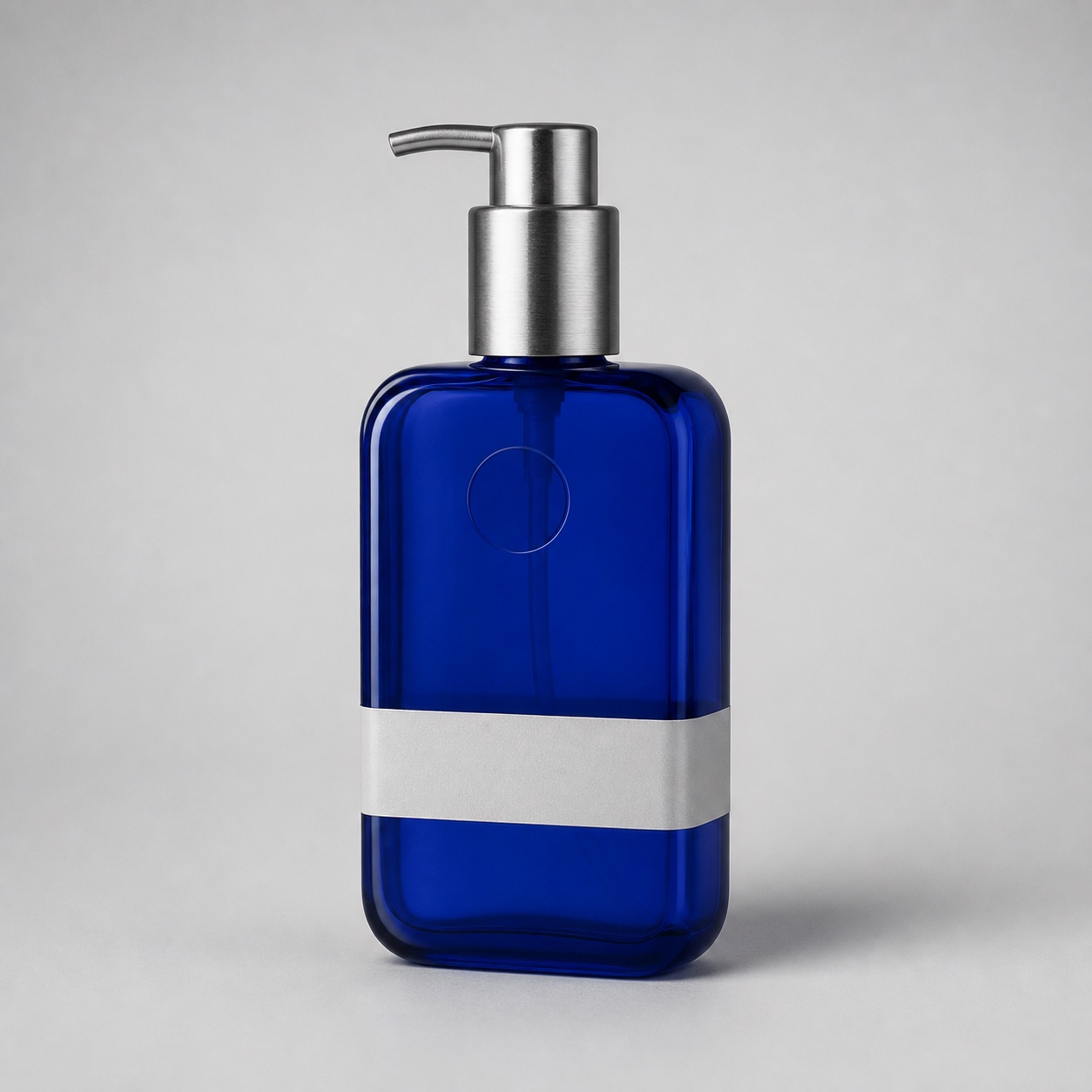
Source reference: the bottle's color, pump, silhouette, and band are facts to check.
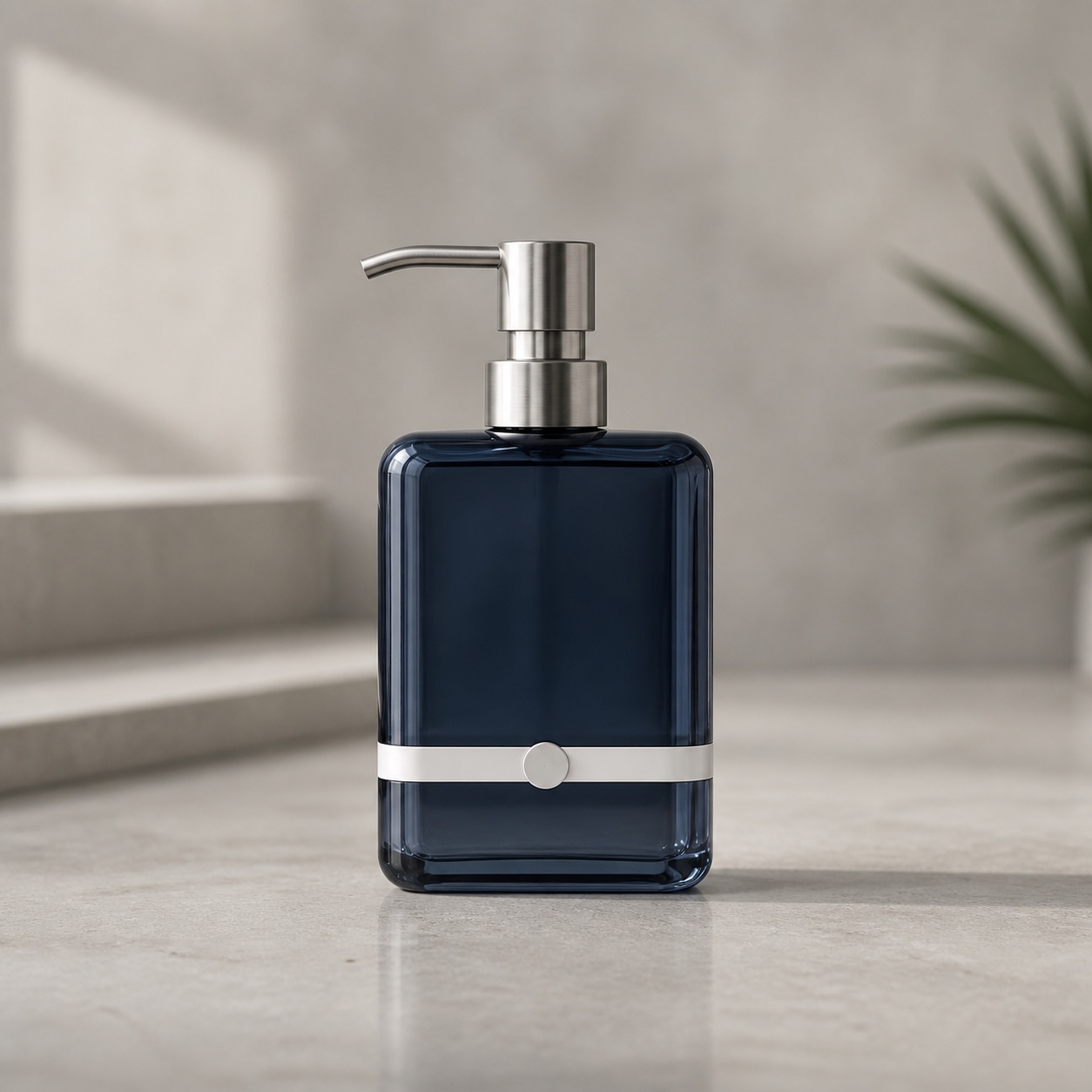
Generated concept: useful scene direction, with visible changes to the product itself.
The result keeps one bottle, a broad rounded-rectangle silhouette, and a white horizontal band. It also changes bright cobalt blue to dark navy, alters the pump head and metal sleeve, moves a circular detail onto the white band as a raised badge, and changes the camera angle and product scale. Those are review findings, not proof of exact product fidelity. If the task requires the real item to be represented accurately, reject this result as a final asset or correct and re-review the affected facts. The product photography task page shows this pair with its review boundaries; Prompt #2424 preserves the concept direction.
Review one decision at a time
- Compare against the brief. Check the subject, required details, intended framing, and safe space at the actual display size. Do not judge only the overall mood.
- Mark each mismatch. Separate a change you allowed, such as a new background, from a change that alters a fact, such as the bottle color. If exact copy, numbers, packaging, or a real person's likeness appears, verify it against an approved source.
- Choose the next action. Keep a result that meets every required fact. If only the framing is wrong, make a narrow revision. If the product identity has drifted, return to the source reference and brief; a nicer background does not compensate for an inaccurate product.
- Compare candidates. Save the promising version and its prompt in History or Favorites, then compare the next attempt with it. Change one prompt decision or supported control at a time so the cause of improvement remains clear.
Model controls and reference-image behavior differ. Review the selected model's supported inputs, output shape, and live credit estimate in the workspace before generating. Do not assume that moving a prompt to another model will preserve the same product details.
Check the final delivery surface
Before publication, inspect the chosen output at every required crop and size. Check subject edges, reflections, hands or faces when present, legibility of approved copy, contrast with surrounding UI, and whether compression reveals defects. Confirm permissions for any source photo, person, brand, or protected design. Keep the approved source, prompt, settings, and selected output together so another reviewer can reproduce the decision trail.
The example above remains a concept because its product details changed. Use it to practice the review, then bring your own approved brief and references into the Image workspace. Generation starts only when you explicitly choose it.
Next step
Turn the workflow into a reviewable creation
Bring the direction you just shaped into the prompt field, review the idea and settings, and generate only when you choose to proceed.