
How to Write AI Image Prompts You Can Review
A practical framework for turning an image idea into a clear prompt, then reviewing the result without relying on vague style words.
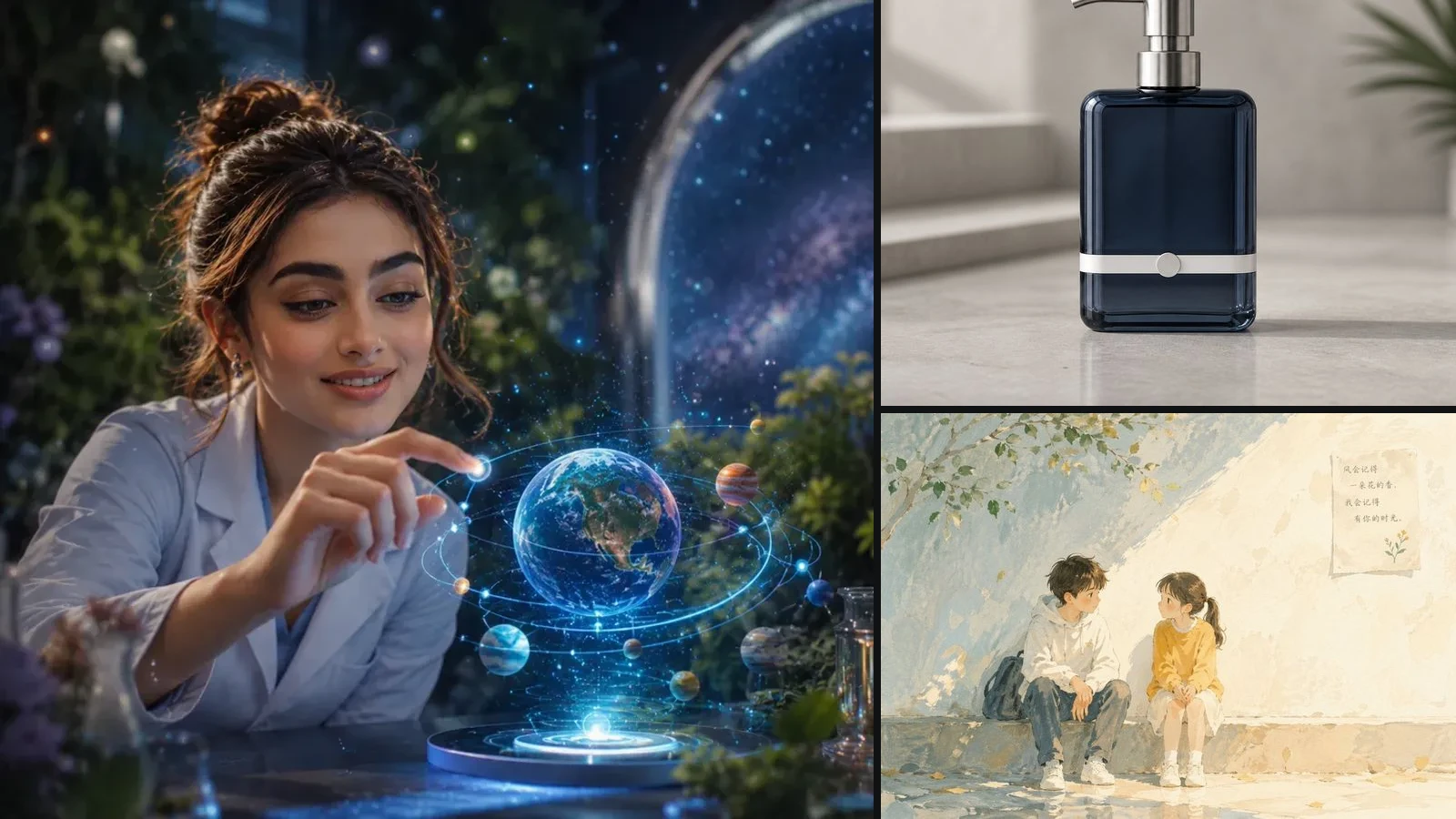
A useful AI image prompt is a reviewable creative brief, not a pile of adjectives. It should make the intended subject, setting, composition, visual treatment, and important limits clear enough that you can explain why a result works or what needs to change.
Start with the decision the image must support
Before describing the picture, name its job. A product image for a catalog page needs different framing from a campaign poster. A character concept needs different continuity notes from a one-off editorial portrait.
Write down three facts first:
- Where the image will appear.
- What a viewer should notice first.
- What would make the result unusable.
This gives every later visual choice a reason. It also keeps the prompt from growing into a long list of details that do not help the final placement.
Build the prompt in six layers
Use a stable order so you can inspect each decision separately.
- Outcome and placement: Name the asset, audience, and intended channel.
- Subject: Describe the primary person, object, or scene and the details that identify it.
- Environment: Set the location, time, atmosphere, and relevant surrounding objects.
- Composition: Specify viewpoint, framing, scale, subject position, and useful negative space.
- Visual treatment: Add lighting, palette, material, texture, and medium only when they support the outcome.
- Constraints: State what must remain absent, unchanged, readable, or available for later review.
For example, “a polished product photo” leaves the most important decisions unresolved. A more reviewable direction is:
Catalog product image of an unbranded dark-blue glass dispenser on a pale stone surface. Eye-level three-quarter view, bottle centered with open space on the left for approved copy. Soft window light from the left, restrained reflections, neutral background, realistic glass and brushed metal. No logo, no text, no extra containers, and no cropped pump.
The second version is not useful because it is longer. It is useful because each phrase describes something you can check in the output.
Separate facts from visual direction
Image generation can suggest a visual direction, but it should not become the source of truth for facts. Keep approved names, prices, dates, measurements, legal copy, and scientific or medical statements in a separate source document.
If exact wording must appear in the image, identify it as approved copy and verify it after generation. If a scene includes a real person, private place, protected design, or client asset, confirm permission before using it as a reference. Treat likeness, product fidelity, accessibility, and factual accuracy as review tasks rather than automatic guarantees.
Choose a model after the intent is clear
Different image models expose different workflows, input roles, aspect ratios, resolution choices, and credit estimates. Choose from the Generator Directory only after the prompt's intended output and required references are known.
Do not move a prompt between models and assume every detail will behave the same way. Recheck supported controls, source requirements, output shape, and the live estimate in the destination workspace before generating.
Iterate one decision at a time
When a result is close, change the smallest useful part of the prompt. Adjust the camera angle without also changing the lighting and palette. Tighten the subject description without replacing the environment. This makes the effect of each revision easier to understand.
A simple review loop is:
- Compare the output with the original placement and focal-point goal.
- Identify the single highest-impact mismatch.
- Change one prompt layer or one supported control.
- Generate a small set and compare it with the previous result.
- Keep a promising result before starting the next revision.
The Prompt Gallery can help you inspect how existing ideas organize subjects, scenes, and visual treatments. Use those examples as references for structure, then rewrite the content for your own task instead of copying an unrelated prompt unchanged.
Use a reusable prompt template
Outcome and placement:
Primary subject:
Environment and supporting details:
Viewpoint, framing, and negative space:
Lighting, palette, materials, and medium:
Approved references:
Must preserve:
Must avoid:
Final checks:
You do not need to fill every line. Keep only the decisions that can materially change the result.
Review before you reuse or publish
Inspect the final candidate at its actual display size. Check subject integrity, edges, hands and faces when present, reflections, background artifacts, crop safety, and contrast. Verify all visible copy and factual details against their approved source. Record which prompt and settings produced the selected image so the decision can be revisited later.
The Image workspace below opens with an empty prompt field and does not start generation automatically. Bring your reviewed brief into it, choose a compatible model, confirm the current controls and estimate, and generate only when the setup matches the intended use.
Next step
Turn the workflow into a reviewable creation
Bring the direction you just shaped into the prompt field, review the idea and settings, and generate only when you choose to proceed.