
AI photo tool
Blur Faces in a Photo: Hide One Face or Every Face
Describe the person you want to blur by position or clothing, or write all faces. Check the downloaded photo at full size before sharing it.
Upload a photo
No NSFW, harmful content, or deceptive identity edits. Follow our Acceptable Use Policy
Your results
Your edited photos will appear here. They are also saved to your history.
Want different instructions? Write your own in the image editor. Open in Image Editor
What Blur Faces helps with
- Asks the model to keep your subject and everything outside the task.
- Shows the credit cost before anything runs.
- Keeps your source photo beside the result so you can compare them.
Results are AI-generated. Keep your original and compare details before you share or print.
Blur Faces sample result
A real CinePixel image-editor result, made with this tool's editing instructions and a catalog image. Results vary with your photo and settings; review them before use.
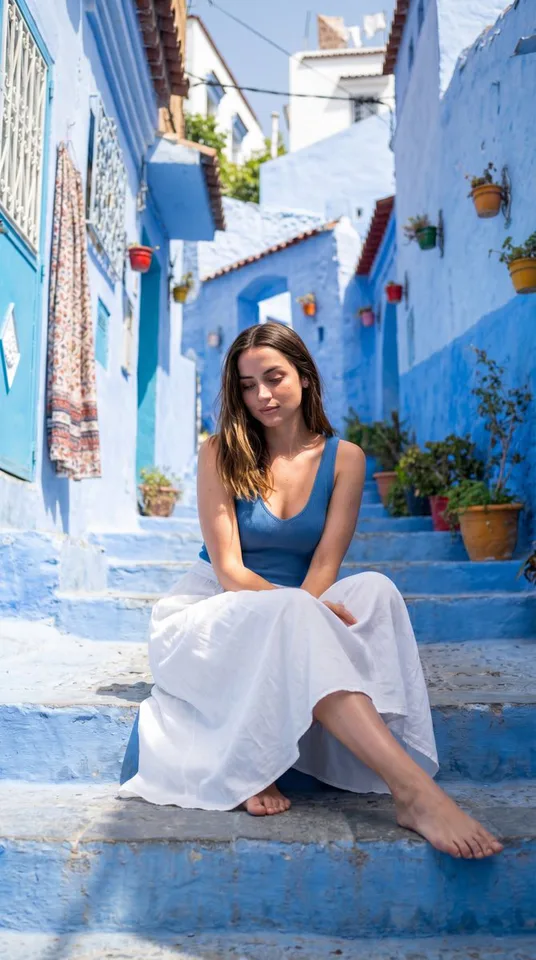
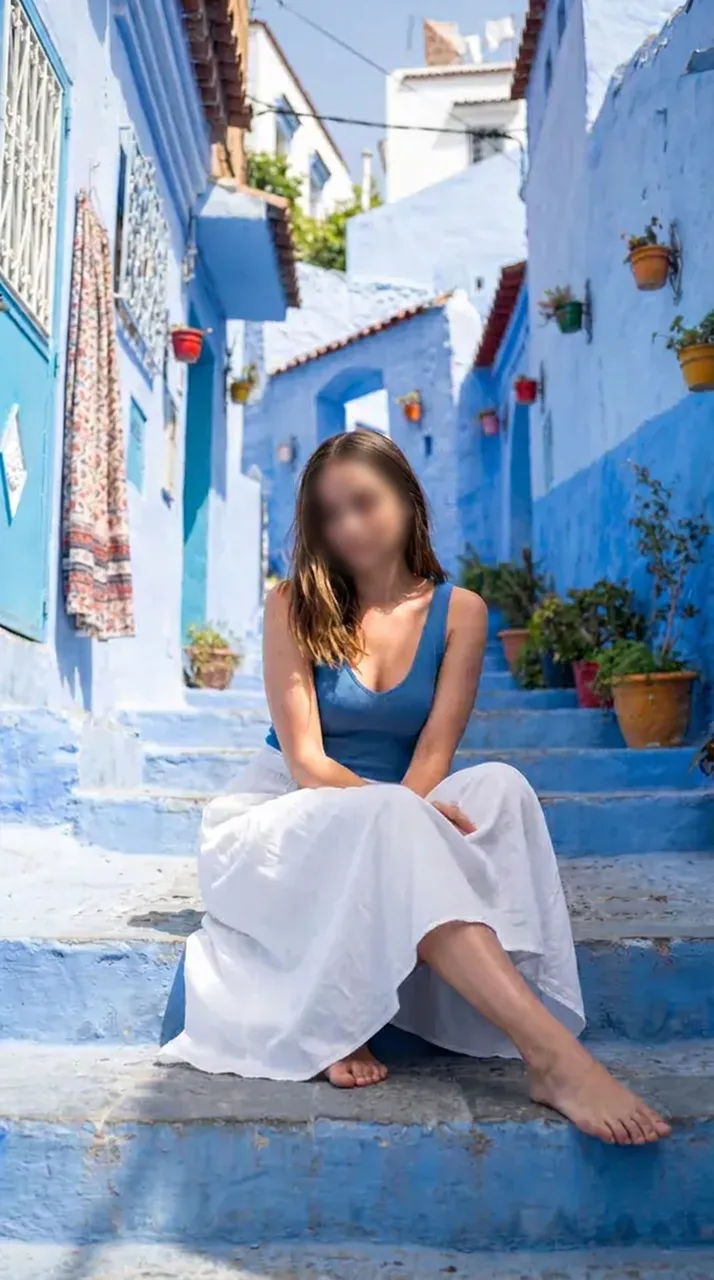
Look at the face, then the steps
In this CinePixel result, the seated person’s face is blurred. Compare the hairline and the blue steps with the source, then zoom in to see what the blur actually covers. The clothes and setting are still visible. Check those clues in your own file before sharing.

What does Blur Faces do?
Blur faces when a photo is fine to share but some people in it should not be recognizable: other children in a class or team photo, strangers behind you in a street or travel shot, a customer in a shop photo, a face in a screenshot or receipt, or people in a rental or real estate listing. Describe the person by position and clothing, such as the boy in the red cap on the left, to censor one face, or write all faces to hide everyone. The blur is even and strong, and the rest of the photo is meant to stay the same. A blur hides a face, not a person: clothes, a name badge or a reflection can still give someone away, so check those before you post.
How to use Blur Faces
- 01
Upload your photo
Add the photo you want to edit. Use the original file or a good scan for the best result.
- 02
Describe what you want in the note
Under Faces to blur, write what you want, for example: The seated person in blue at the center. Leave the other faces alone.. Then check the credit cost and generate.
- 03
Check the result against your photo
Zoom in on the selected face, then check nearby faces and any mirrors or windows. If the person is still recognizable, keep the draft private.
- 04
Download the version you checked
Download the result you are happy with. Every result is also saved in your history.
Blur Faces features
Name the person under Faces to blur
Upload the photo. Describe the person by where they are and what they are wearing. For example, write “the seated person in blue in the center” and ask to leave everyone else as they are. Start with one draft.
Zoom in on the whole face
Open the downloaded image at full size. If you can still make out the eyes, nose or mouth, the blur is too light. Check that neighboring faces still look the same.
Check the rest of the image before sharing
A reflection, badge, tattoo or distinctive clothing may still identify someone. If the image needs to keep a person anonymous, use a solid cover or crop out the identifying details in a local editor and check the exported file.
What you can do with Blur Faces
Other children in a school or team photo
Keep your child visible and blur classmates or teammates before posting the picture to family or social media.
Strangers in street and travel photos
Blur the faces of people behind you at a landmark or on a busy street, or write all faces for a crowd.
Listings, reviews and screenshots
Censor a face in a rental, shop or real estate photo, or in a screenshot you are sharing as evidence.
Tips for better Blur Faces results
- Add a second cue if two people are wearing the same color. Use “left” and “right” as they appear on screen.
- Check every face that should stay visible. The model can blur the wrong person or change details outside the selected face.
- Share the checked copy. If the unedited photo needs to stay on your device, use a local editor from the start.
Blur Faces FAQ
- What should I review?
- Zoom in on the selected face, then check nearby faces and any mirrors or windows. If the person is still recognizable, keep the draft private.
- Is blurring a face enough to hide someone's identity?
- Not always. Hair, clothes, tattoos, badges and the location can still identify a person. For reliable redaction, use a solid cover or crop the details out locally and review the exported copy.
- How do I blur every face at once?
- Write all faces in the note. Every visible face is blurred; check the edges of the photo and small faces in the background afterwards.
- Will it change the rest of my photo?
- Everything outside the blurred faces is meant to stay the same, though a regenerated image can differ slightly from the upload. Compare the two before you delete the original.