
Add, replace, remove, repair or extend
Describe the target area and choose one operation. This workflow uses text-directed image editing; it does not provide a mask brush.
Describe the target area and choose one operation. This workflow uses text-directed image editing; it does not provide a mask brush.
Prepare an authorized source
Use a JPG, PNG or WebP image that you own or have permission to edit. Keep the original file. Wait for the preview and image dimensions to load before starting. The output is a generated image, not a layer-based edit of the original.
Write a bounded edit brief
Complete all three fields. Identify one visible area rather than asking for an unrelated redesign. The description guides the model but does not supply a pixel mask. For expansion, choose the output ratio and explain which new background should be generated.
- What should change?
- Where is the target area?
- What must be retained?
Choose one fill operation
Add · Replace · Remove · Repair · Extend
Review the example brief
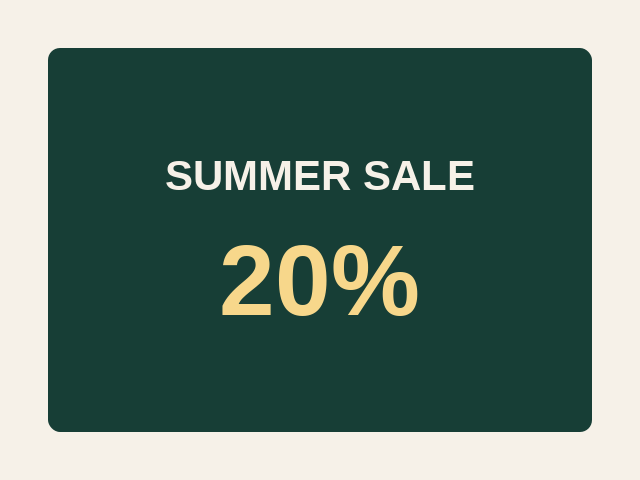
Change the plain background to a warm beige surface. Target only the background; retain SUMMER SALE, 20%, typography and card proportions.
This is an example brief, not a verified AI result. Compare the text, numbers, edges and entire layout before using an output.
Generate and recover safely
Check the current quote, output resolution and count. Each output uses the existing image job and credit flow. If the quote fails, refresh it before submitting. If a start response is uncertain, inspect history before creating another job. A network failure does not prove that no job exists.
Compare the whole image
Review the target, boundaries, shadows, repeated textures, faces, labels, numbers and unedited regions at full size. AI can alter protected details even when the instructions say to preserve them. Reject outputs that change factual text, identity or product geometry. Keep source and result together for review.
Continue editing
Next step
Turn the workflow into a reviewable creation
Bring the direction you just shaped into the prompt field, review the idea and settings, and generate only when you choose to proceed.