
AI photo tool
AI Image Extender: Extend a Portrait Photo to 16:9
Make a horizontal cover from a vertical photo. Upload the original, choose 16:9, and describe what belongs at the sides.
Upload a photo
No NSFW, harmful content, or deceptive identity edits. Follow our Acceptable Use Policy
Your results
Your edited photos will appear here. They are also saved to your history.
Want different instructions? Write your own in the image editor. Open in Image Editor
Follow the shoreline across the joins
For this coastal portrait, try the note “Continue the sky and shoreline on both sides. Keep the face, hair and white dress as they are. Leave quiet sky on the left for a title.” In your draft, follow the shoreline and the strip of white surf out past the old edges. If a wave repeats or the dress changes, revise the note or choose another draft.
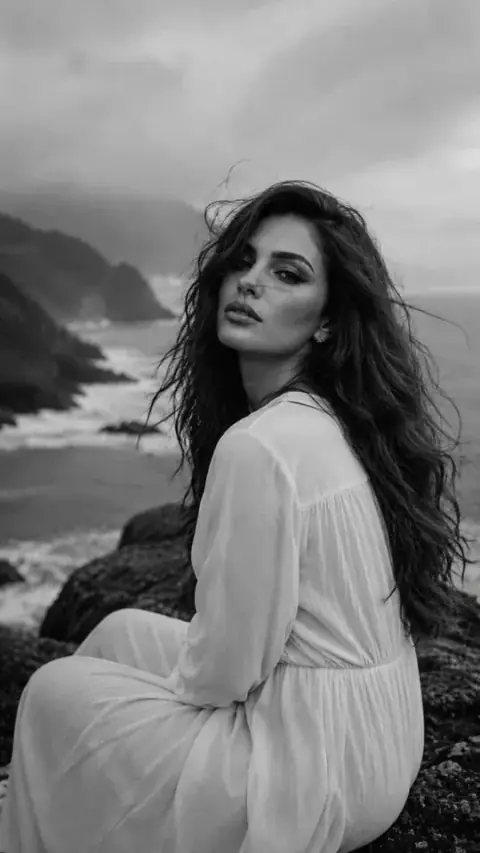
Image credit: EvoLink GPT Image 2 Curated Cases. Resized for web.Original sourceCC0 1.0

What AI Image Extender helps with
- Asks the model to keep your subject and everything outside the task.
- Shows the credit cost before anything runs.
- Keeps your source photo beside the result so you can compare them.
Results are AI-generated. Keep your original and compare details before you share or print.
What does AI Image Extender do?
An AI image extender adds new picture area around your photo instead of cropping it. Typical jobs: a vertical phone portrait that has to become a 16:9 YouTube thumbnail or slide, a product shot that needs room on one side for a headline, a landscape cut too tight at the top, or a cropped photo you want to uncrop. Choose 16:9 under Image size and describe what belongs at the sides, such as more beach and sky. Your original area is meant to stay the same and the new edges are matched in light, perspective and texture. Everything added is generated, not recovered, so do not present it as the real wider shot.
How to use AI Image Extender
- 01
Upload your photo
Add the photo you want to edit. Use the original file or a good scan for the best result.
- 02
Describe what you want in the note
Under What to add around the photo, write what you want, for example: Continue the sky and shoreline on both sides. Keep the person in place.. Then check the credit cost and generate.
- 03
Check the result against your photo
Compare the original with the draft. Look for a jump at either edge and check that the face, hands and clothes still match.
- 04
Download the version you checked
Download the result you are happy with. Every result is also saved in your history.
AI Image Extender features
Choose 16:9 under Image size
Switch Image size from Auto to 16:9 and start with one draft, so you can compare a single result with the original before trying more.
Say what goes on each side
In What to add around the photo, name the scenery that reaches the existing edges and what should stay in place. For a cover, say which side needs room for the headline.
Follow a line across each join
Open the draft beside the original. Trace a wall, a shoreline or a shadow across each old edge. Reject a sudden step or a repeating patch, and check the original subject at full size.
What you can do with AI Image Extender
AI photo extender for a YouTube thumbnail or video cover
Turn a vertical portrait into a 16:9 frame with room on one side for the title text.
Expand an image for widescreen slides and banners
Extend a product or team photo sideways so it fills a slide or a website header without stretching.
Zoom out an image or uncrop a tight photo
Zoom out on a subject that was cropped too close: the extender adds back sky, floor or background around it.
Tips for better AI Image Extender results
- Begin with the original vertical photo. If you crop away the shoulders first, the extender has less to work with.
- Try a source with simple edges. Smooth sky or a blank wall gives you fewer lines to match than a busy crowd.
- If a draft repeats a rock or bends a railing, make the note more specific and compare the next draft at the same zoom.
AI Image Extender FAQ
- What should I review?
- Compare the original with the draft. Look for a jump at either edge and check that the face, hands and clothes still match.
- Is the extended part real?
- No. It is generated to look plausible and may add objects that were never there. Do not present it as a real wider shot of the scene.
- How much extra space does 16:9 add to a portrait?
- For a 1920 × 1080 cover, a centered 9:16 portrait scaled to 1080 pixels high is about 608 pixels wide, which leaves about 656 pixels on each side to fill. The draft may place the subject differently.
- Can I extend only one side?
- Say so in the note, for example extend to the right only and keep the person at the left edge. The model follows the note, but check that the subject did not move.