
Plan seasonal campaign images before adding copy
Settle the occasion, market, palette and empty text area first, then add checked dates and prices later and test the crop at final size.

Specify the occasion and audience, region or language, permitted symbols, palette, focal subject and a calm text area. Keep dates, prices, discount terms and names outside the generated scene until they have been checked. Avoid assuming one celebration or symbol means the same thing in every market.
The visual below is a reviewed editorial reference, not a CinePixel generation result or a model comparison. The starter brief is an original example to adapt; it does not run automatically.
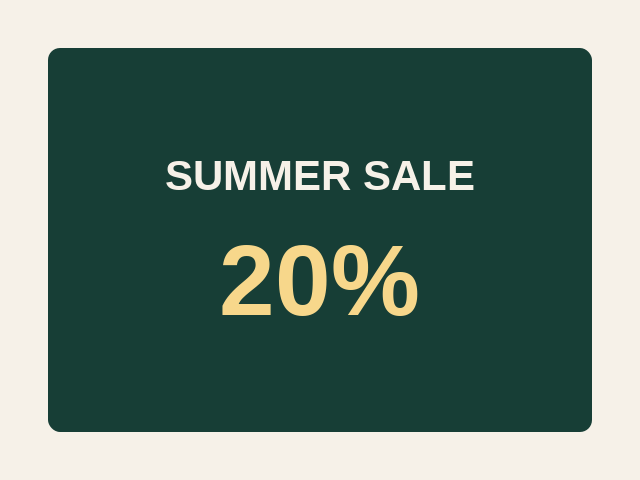
Review before reuse
The reference is CinePixel’s original sale-card illustration, used to review text hierarchy and empty space. It is not a generated holiday result. Test the real heading, date, numerals and contrast at the final display size, then inspect mobile and desktop crops.
A starter brief to adapt
An original winter sale concept: folded wool scarves on a warm neutral surface, soft cool window light, one small pine branch at the edge, generous empty upper-left area for approved copy, no existing brand marks. Add the exact date and discount later and proofread them separately.
Continue in the current workspace
For existing copy use exact text replacement or translation and compare every character. For a new composition use a concept brief or photo editing. Finish exact pixel dimensions with the local resizer. The existing gallery may return approved seasonal matches; an empty search is not permission to publish unreviewed examples.
Next step
Turn the workflow into a reviewable creation
Bring the direction you just shaped into the prompt field, review the idea and settings, and generate only when you choose to proceed.