
Translate text inside an image with AI
Upload an image, choose a target language, and generate a translated design draft. Check wording, numbers and layout against the original.
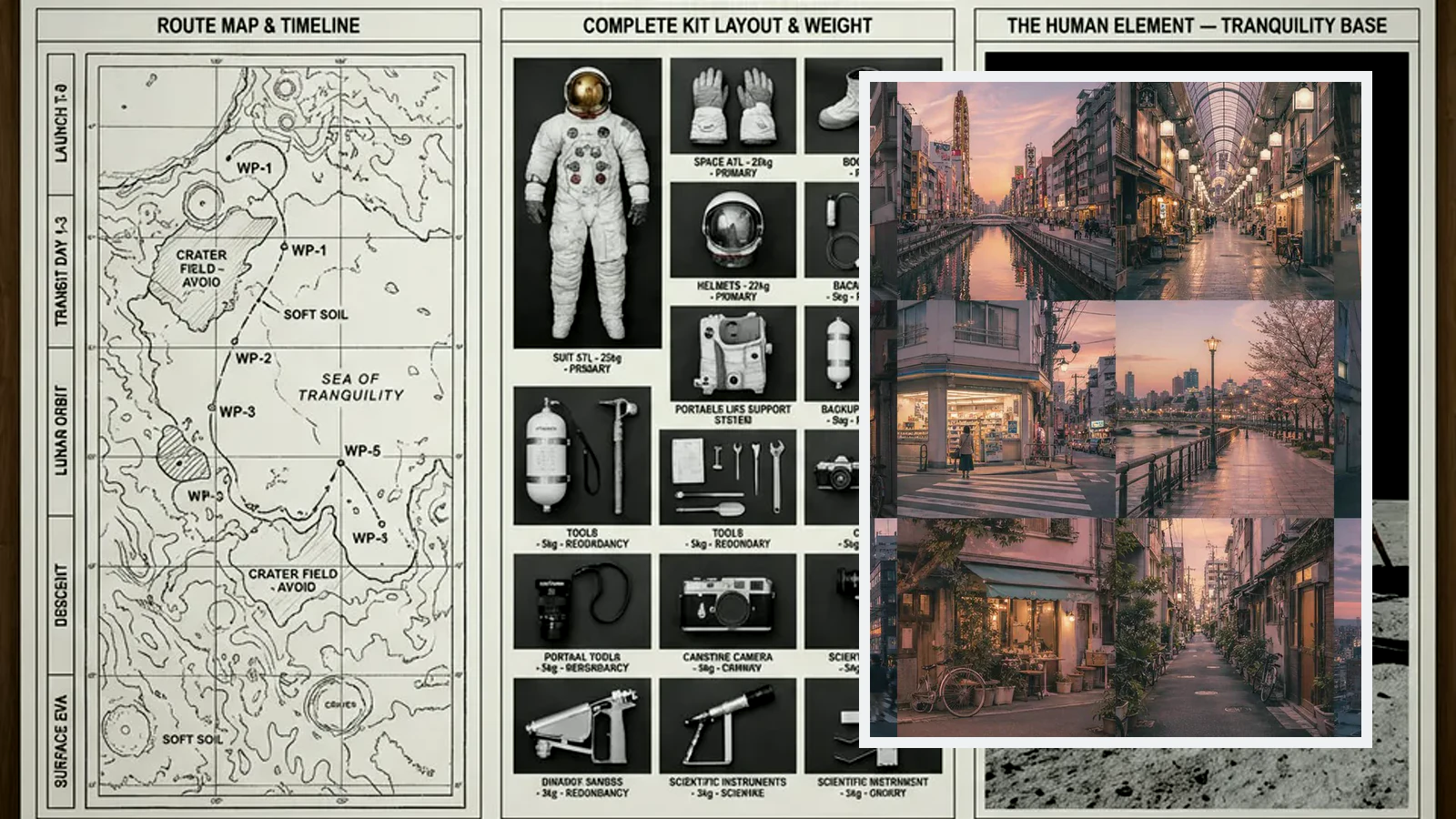
Upload an image, choose a target language, and generate a translated design draft. Check wording, numbers and layout against the original.
Prepare the source
Use an original image you own or have permission to edit. Upload a supported JPG, PNG or WebP file. Wait for the preview and dimensions to finish loading. Auto chooses the closest supported aspect ratio; it does not promise the exact source pixel dimensions.
Set the task
Choose the output resolution and number of images, then read the live credit total. Sign in before generating. Each image is a separate job using the existing image pipeline; the source and task settings remain available if a start request fails.
Work through the example
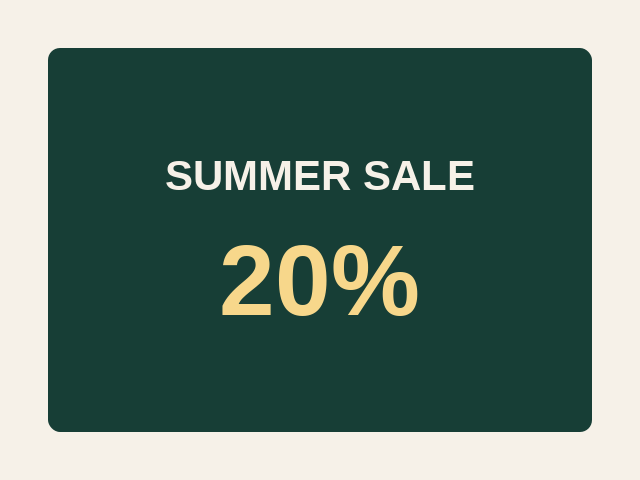
An original sample card containing SUMMER SALE and 20%.
Translate the headline into Simplified Chinese while retaining 20%.
Check that the meaning is correct, the discount is unchanged and the headline fits. This is an example brief, not a verified model output.
Review before using the result
Compare the original and result side by side at full size. Check every changed letter, number, edge and subject detail. A convincing image can still contain factual errors. Keep the original and reject a draft that does not satisfy your brief.
The result is an AI draft. Verify the translated wording and all numbers, units, names and claims; inspect the layout before using it.
Credits and recovery
The page displays the current price. If it cannot load, refresh it before submitting. A price increase requires a fresh quote. If a status check times out, inspect History before creating another paid job. An uncertain start response may already have created a job; check History first.
Continue editing
Next step
Turn the workflow into a reviewable creation
Bring the direction you just shaped into the prompt field, review the idea and settings, and generate only when you choose to proceed.