
AI photo tool
Photo to Pixel Art: Turn a Photo into a Pixel Art Portrait or Avatar
Choose a clear portrait and a square canvas for your profile. The preset redraws the photo in blocks of color. Check whether the face still reads when you shrink the preview.
Upload a photo
No NSFW, harmful content, or deceptive identity edits. Follow our Acceptable Use Policy
Your results
Your edited photos will appear here. They are also saved to your history.
Want different instructions? Write your own in the image editor. Open in Image Editor
What Photo to Pixel Art helps with
- Asks the model to keep your subject and everything outside the task.
- Shows the credit cost before anything runs.
- Keeps your source photo beside the result so you can compare them.
Results are AI-generated. Keep your original and compare details before you share or print.
Photo to Pixel Art sample result
A real CinePixel image-editor result, made with this tool's editing instructions and a catalog image. Results vary with your photo and settings; review them before use.
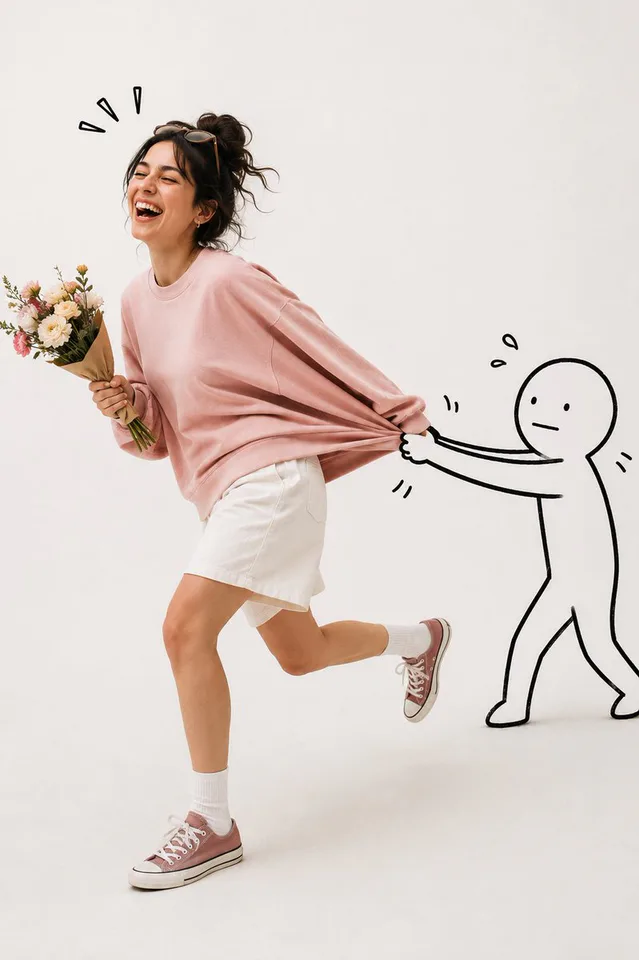
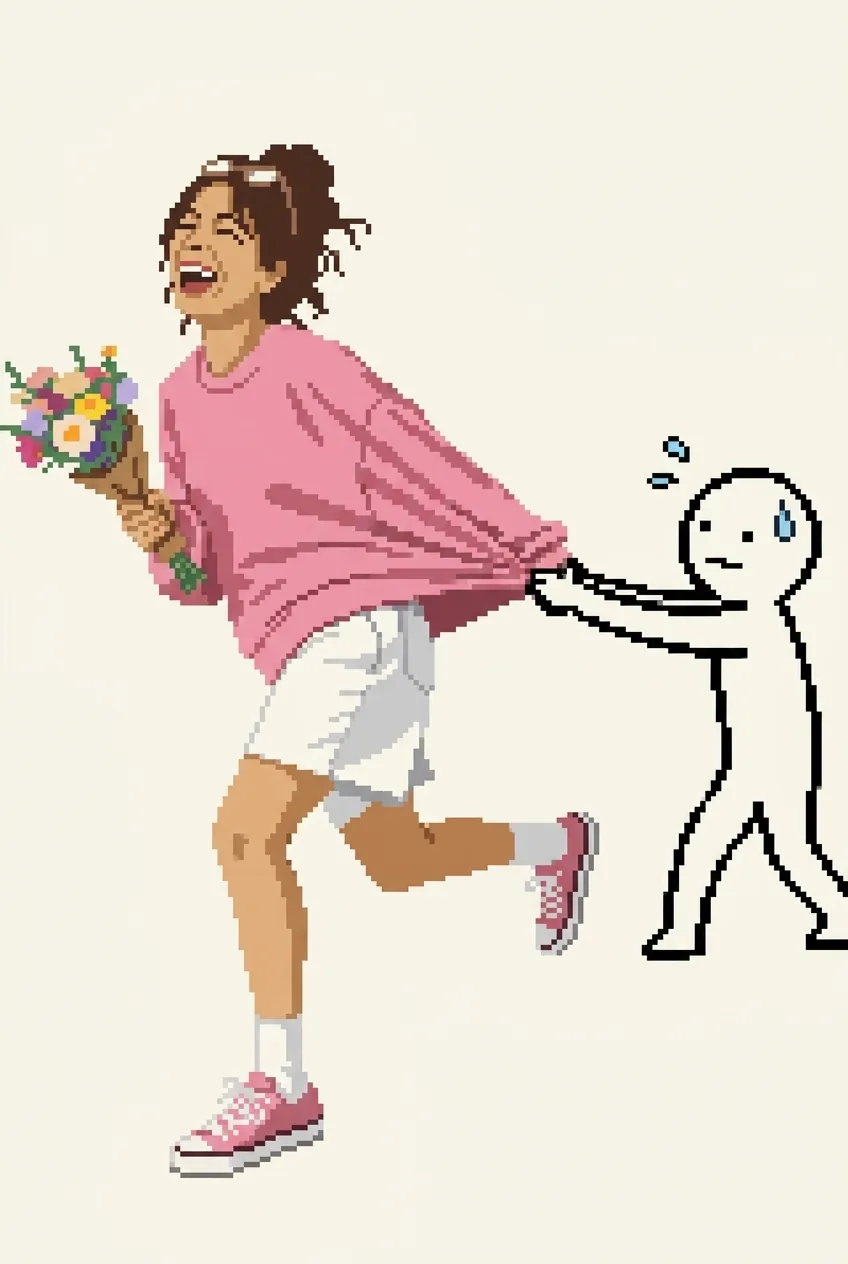
Check what reads when the picture is small
In this pixel art result, the pink sweater and the dark hair stay readable when the image is small. The flowers and facial features lose detail. The drawn figure also picks up blue marks. For a profile picture, start with a tighter crop of one subject and check the expression before keeping the draft.

What does Photo to Pixel Art do?
This photo to pixel art converter redraws a picture in square blocks with a small set of colors, the way an 8-bit game would show it. A profile picture is the most common use, so start with a close crop and a simple backdrop, and judge the result at the size people will actually see it. The same steps work for a retro graphic or a bead-pattern idea, though the grid is drawn by the model and is not an exact pixel-for-pixel chart.
How to use Photo to Pixel Art
- 01
Upload your photo
Add the photo you want to edit. Use the original file or a good scan for the best result.
- 02
Run Photo to Pixel Art
Choose a clear portrait and a square canvas for your profile. The preset redraws the photo in blocks of color. Check whether the face still reads when you shrink the preview.
- 03
Check the result against your photo
Zoom in to confirm the pixels are square and crisp, the palette is small, and the silhouette still reads as your subject.
- 04
Download the version you checked
Download the result you are happy with. Every result is also saved in your history.
Photo to Pixel Art features
Choose a square image for a profile
Pick 1:1 under Image size for a profile picture and start with one draft. Leave room around the face if the profile shows images in a circle.
Check the silhouette at thumbnail size
Shrink the preview and see whether you can still separate the head and shoulders from the background. Look for broad areas of color that hold their shape.
Compare small details with the source
Check the eyes, expression and distinguishing details at full size. The model draws the block shapes, so the spacing and palette can vary.
What you can do with Photo to Pixel Art
Pixel art converter for retro avatars
Turn a selfie or a pet photo into a pixel portrait for a profile or a forum signature.
AI pixel art generator for game-style mockups
Draft a character or a scene in pixel style to show an idea for a small indie project.
Pixel art maker for Minecraft builds and retro posters
Make a blocky version of a landmark, pet or team photo to copy block by block in a Minecraft build, or print it as a poster or sticker.
Tips for better Photo to Pixel Art results
- Use a photo with a big, simple subject, since small details disappear in a low-res grid.
- A plain or uncluttered background keeps the palette small and the silhouette clear.
- If a profile has an exact pixel limit, resize the file and inspect the exported edges. Resampling can soften the blocks.
Photo to Pixel Art FAQ
- What should I review?
- Zoom in to confirm the pixels are square and crisp, the palette is small, and the silhouette still reads as your subject.
- Can I use the result as a game sprite?
- It is one picture and not a sprite sheet, so you would have to cut, resize and align it in your own tool.
- Why are the pixels uneven in places?
- The model draws the pixel look instead of resampling your photo, so the grid is not always fully regular.
- How many colors does it use?
- The tool asks for a limited palette, but it does not set an exact number, so the count can vary between outputs.