
AI photo tool
Photo to Watercolor: Turn a Portrait or Place into a Watercolor Painting
Start with an outdoor portrait in soft light. The preset redraws it with pale paper showing through the washes. Compare the face and pose before keeping the result.
Upload a photo
No NSFW, harmful content, or deceptive identity edits. Follow our Acceptable Use Policy
Your results
Your edited photos will appear here. They are also saved to your history.
Want different instructions? Write your own in the image editor. Open in Image Editor
What Photo to Watercolor helps with
- Asks the model to keep your subject and everything outside the task.
- Shows the credit cost before anything runs.
- Keeps your source photo beside the result so you can compare them.
Results are AI-generated. Keep your original and compare details before you share or print.
Photo to Watercolor sample result
A real CinePixel image-editor result, made with this tool's editing instructions and a catalog image. Results vary with your photo and settings; review them before use.
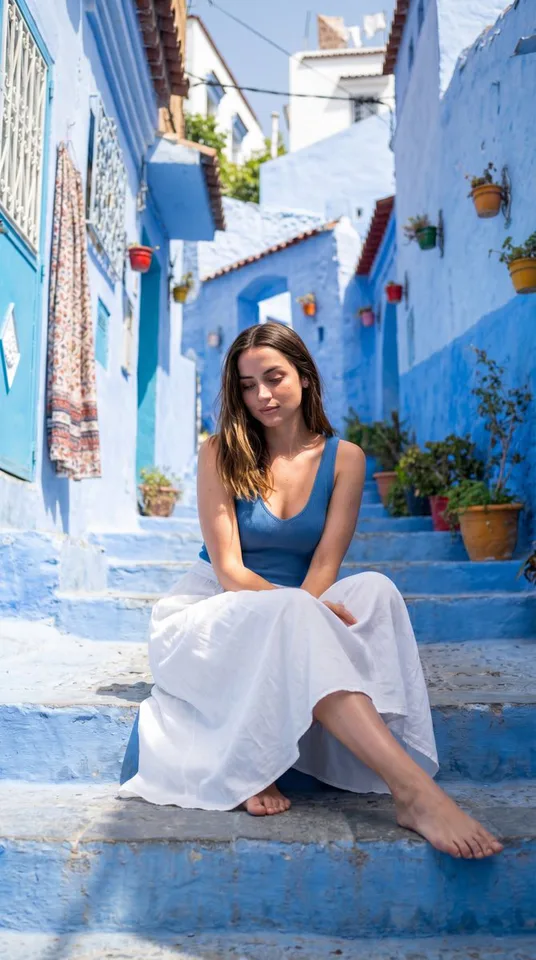
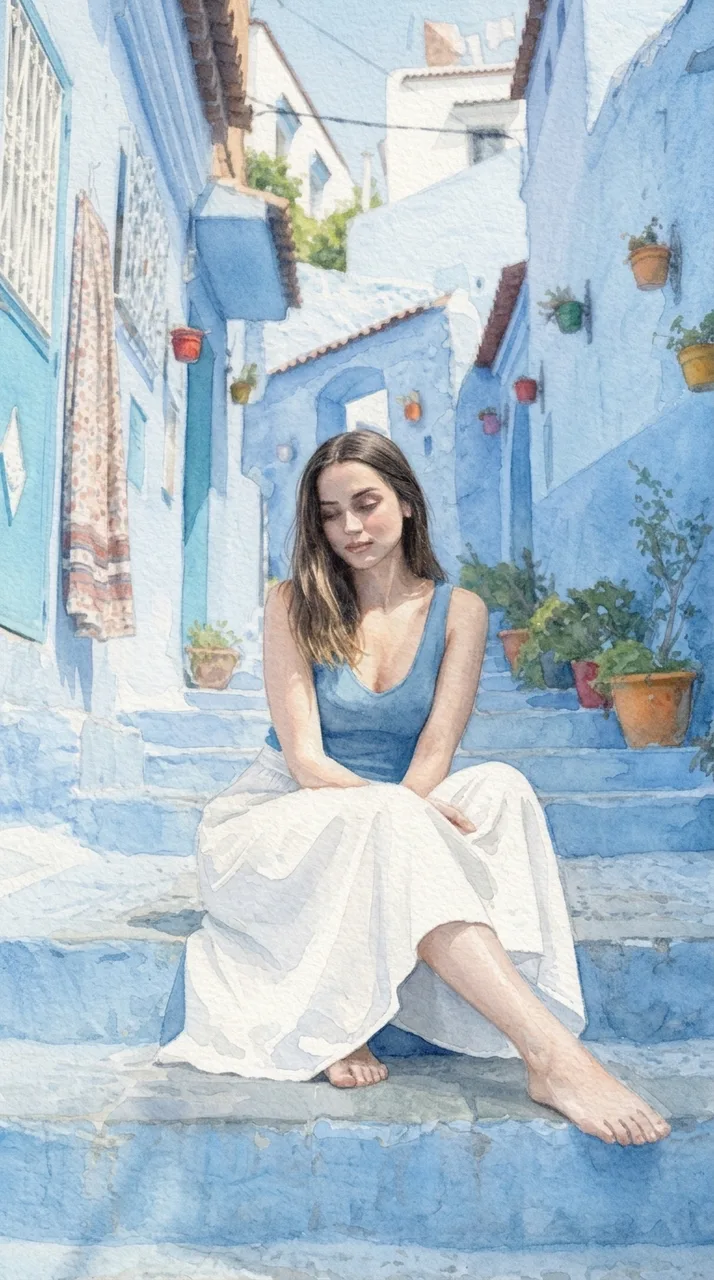
Compare the white skirt and the blue steps
The blue wash breaks into lighter patches on the steps, and the brightest folds of the skirt stay nearly paper white. The small markings on the wall lose detail. Compare the eyes and the angle of the head with the source before keeping your own draft.

What does Photo to Watercolor do?
Photo to watercolor repaints your picture on textured paper with translucent washes, soft bleeding edges and white paper left in the brightest areas. It works best on bright, simple scenes: an outdoor portrait in soft light, a wedding venue or a couple photo, the front of a house, a garden, a harbor or a travel view with big areas of color. Busy scenes with many small objects turn muddy, because watercolor suits a few large shapes. The pose, faces and layout are meant to stay, but edges are softer by design, so check the eyes and any small text before printing.
How to use Photo to Watercolor
- 01
Upload your photo
Add the photo you want to edit. Use the original file or a good scan for the best result.
- 02
Run Photo to Watercolor
Start with an outdoor portrait in soft light. The preset redraws it with pale paper showing through the washes. Compare the face and pose before keeping the result.
- 03
Check the result against your photo
Look for translucent color, soft bleeding edges and paper showing through, and make sure the main subject is still easy to recognize.
- 04
Download the version you checked
Download the result you are happy with. Every result is also saved in your history.
Photo to Watercolor features
Start with a bright, simple photo
Light clothes, sky and pale walls are where paper shows through. A dark or crowded photo leaves little white, and the painting looks heavy.
Look for paper in the light areas
Compare bright clothes and walls with the original. You should see pale paper through the color and washes that fade gradually at the edges.
Compare the expression with the original
Zoom in on the eyes, mouth and hairline, then zoom out and compare the tilt of the head, the pose and the main lines of the background.
What you can do with Photo to Watercolor
Wedding and anniversary art
Paint a venue or a couple photo for a save-the-date, a program or an anniversary card.
House and garden portraits
Turn the front of a home or a garden in bloom into a soft painting for a housewarming or holiday card.
Travel journals
Add a painted version of a harbor, a street or a view from a trip to a scrapbook page.
Tips for better Photo to Watercolor results
- Bright, airy photos with clear light areas give the most natural paper-white highlights.
- Skip busy scenes, because watercolor suits a few big shapes and clear color areas.
- Choose a different source if the face is too small or a busy background makes the subject hard to read.
Photo to Watercolor FAQ
- What should I review?
- Look for translucent color, soft bleeding edges and paper showing through, and make sure the main subject is still easy to recognize.
- Why does the result look blurry in places?
- Soft bleeds are part of the watercolor look, so some edges melt together on purpose. If a face is too soft, use a photo where it is larger in the frame.
- Can I make the colors stronger?
- There are no style settings, so start from a photo with richer, more saturated color.
- Is the paper texture real?
- No. The paper texture is painted into a digital image; it is not a scan of real paper.