
AI photo tool
AI Sticker Generator: Turn Photo into Sticker: Sticker Art with a Thick White Outline
Upload one photo with room around the subject. The preset redraws it with a thick white border on a plain background.
Upload a photo
No NSFW, harmful content, or deceptive identity edits. Follow our Acceptable Use Policy
Your results
Your edited photos will appear here. They are also saved to your history.
Want different instructions? Write your own in the image editor. Open in Image Editor
What AI Sticker Generator helps with
- Asks the model to keep your subject and everything outside the task.
- Shows the credit cost before anything runs.
- Keeps your source photo beside the result so you can compare them.
Results are AI-generated. Keep your original and compare details before you share or print.
AI Sticker Generator sample result
A real CinePixel image-editor result, made with this tool's editing instructions and a catalog image. Results vary with your photo and settings; review them before use.
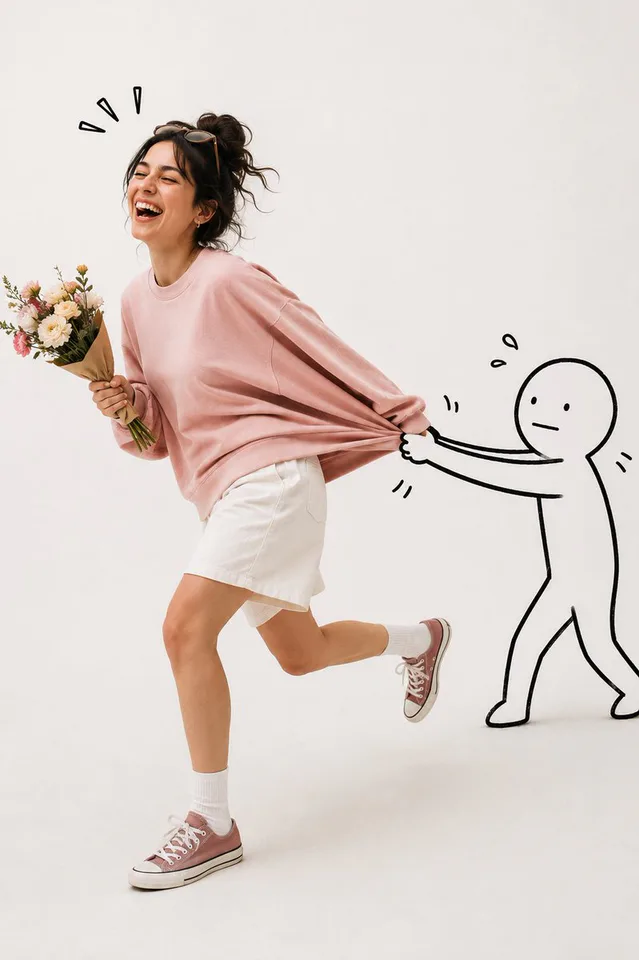
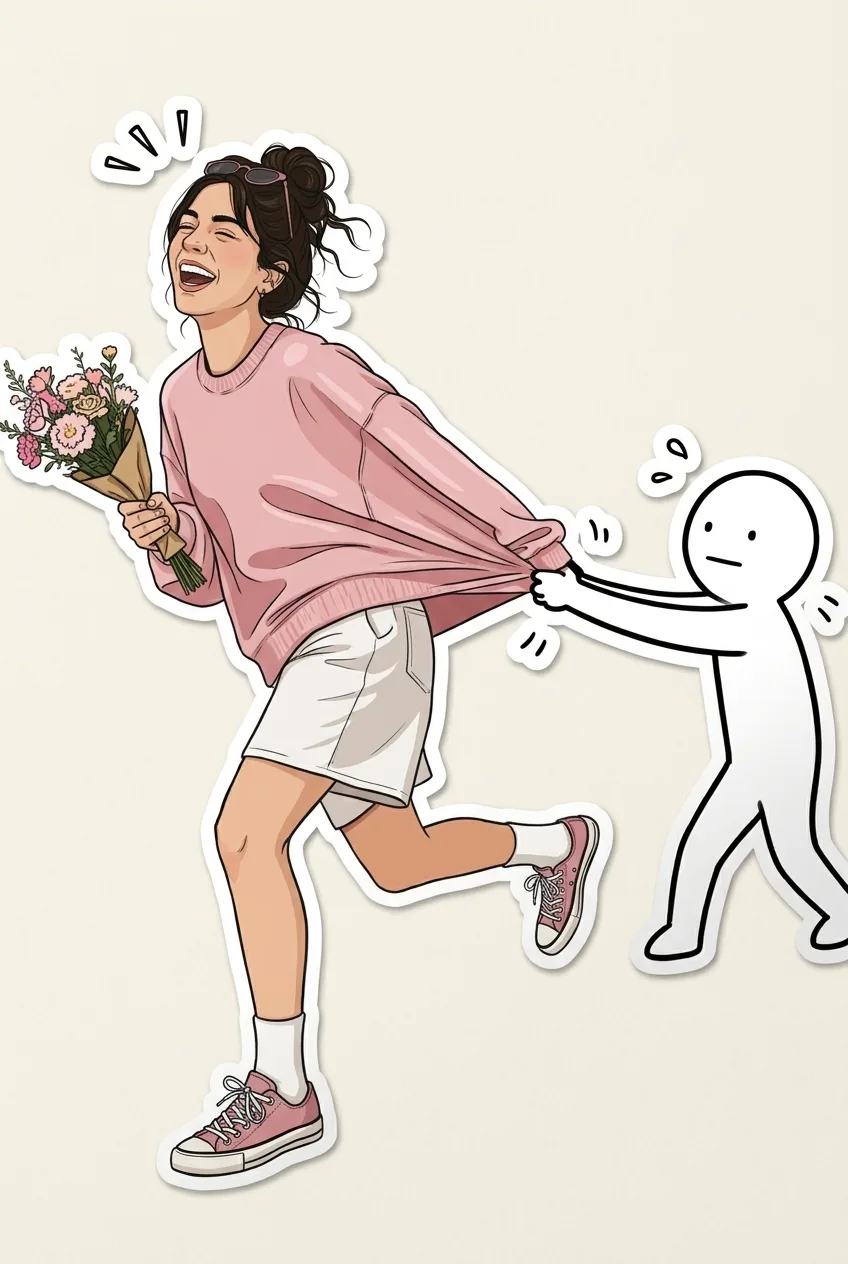
Follow the outline all the way to the frame
In this CinePixel result, the white outline follows the hair and the raised shoe. The flowers and drawn figure still reach the sides of the frame. For an outline that goes all the way around, start with more space on both sides. The cream area is part of the picture.

What does AI Sticker Generator do?
Photo to sticker works best with one clear subject: a dog sitting in the grass, a child's school portrait, a friend pulling a face, a cup of coffee, a houseplant or a small product. The preset redraws that subject as a die-cut style sticker with a thick white outline and a plain background, and keeps the details that make it recognizable, such as markings on a pet or the color of a shirt. It does not add text or logos. The background is plain, not transparent, so for a cut-out PNG run the result through the transparent background tool, and for printing prepare your own cut line.
How to use AI Sticker Generator
- 01
Upload your photo
Add the photo you want to edit. Use the original file or a good scan for the best result.
- 02
Run AI Sticker Generator
Upload one photo with room around the subject. The preset redraws it with a thick white border on a plain background.
- 03
Check the result against your photo
Check the white border and margins. The subject should keep its recognizable details, and the background is plain, not transparent.
- 04
Download the version you checked
Download the result you are happy with. Every result is also saved in your history.
AI Sticker Generator features
Leave room around the subject
The white outline needs space. If ears, a tail or a hand already touch the edge of your photo, the outline gets cut off; use a looser crop with some background on every side.
Check thin parts of the outline
Follow the border around whiskers, fingers, hair and the gap under an arm. At sticker size, two shapes that nearly touch often merge into one white blob.
Look at it at the size you will use
Shrink the result to about 5 cm or a chat sticker. If the face or the main shape no longer reads, choose a closer source photo and run it again.
What you can do with AI Sticker Generator
Pet stickers
Turn a photo of your dog or cat into a sticker for a laptop, a water bottle or a gift tag.
Chat stickers of friends and family
Make a funny face into a sticker for a group chat, then remove the background for a cut-out PNG.
Stickers for a small shop
Redraw a candle, a mug or a plant from your shop as sticker artwork for a packaging insert.
Tips for better AI Sticker Generator results
- Choose a photo with one clear subject, because the sticker is built around a single main shape.
- Check the space around the subject in the original. If it already touches the frame, choose a looser source.
- View the draft at its intended size. Check that a small face or fine detail is still readable.
AI Sticker Generator FAQ
- What should I review?
- Check the white border and margins. The subject should keep its recognizable details, and the background is plain, not transparent.
- Does the sticker have a transparent background?
- No. The background is plain and not transparent. For a cut-out PNG sticker, run the result through the transparent background maker on this site and check that the white border survives.
- Can it turn a group photo into one sticker?
- It is built around one main subject. With two or three people close together it may work, but faces get small; for a group, crop each person and make separate stickers.
- Can I print and cut it on a sticker sheet?
- You can use the picture as artwork, but you still need a cut line in your printer's or cutting machine's format and a test print to check the colors.